Saving and loading settings
Use the Settings Saver menu to save this instance's settings to a profile, load a profile into an instance, and read the status messages.
On this page
By the end of this guide your settings are saved in a profile, and you know how to load them into an instance that already has its own settings.
Before you start#
Settings Saver is installed and you have set up the game the way you like it: video settings, controls, keybinds, sounds, language and so on.
Save your settings#
- Open Options, then Settings Saver....
- Click Save settings to profile.
- The game asks Replace the settings saved in 'default'? Click Yes.
- The menu shows Saved to 'default' in green.
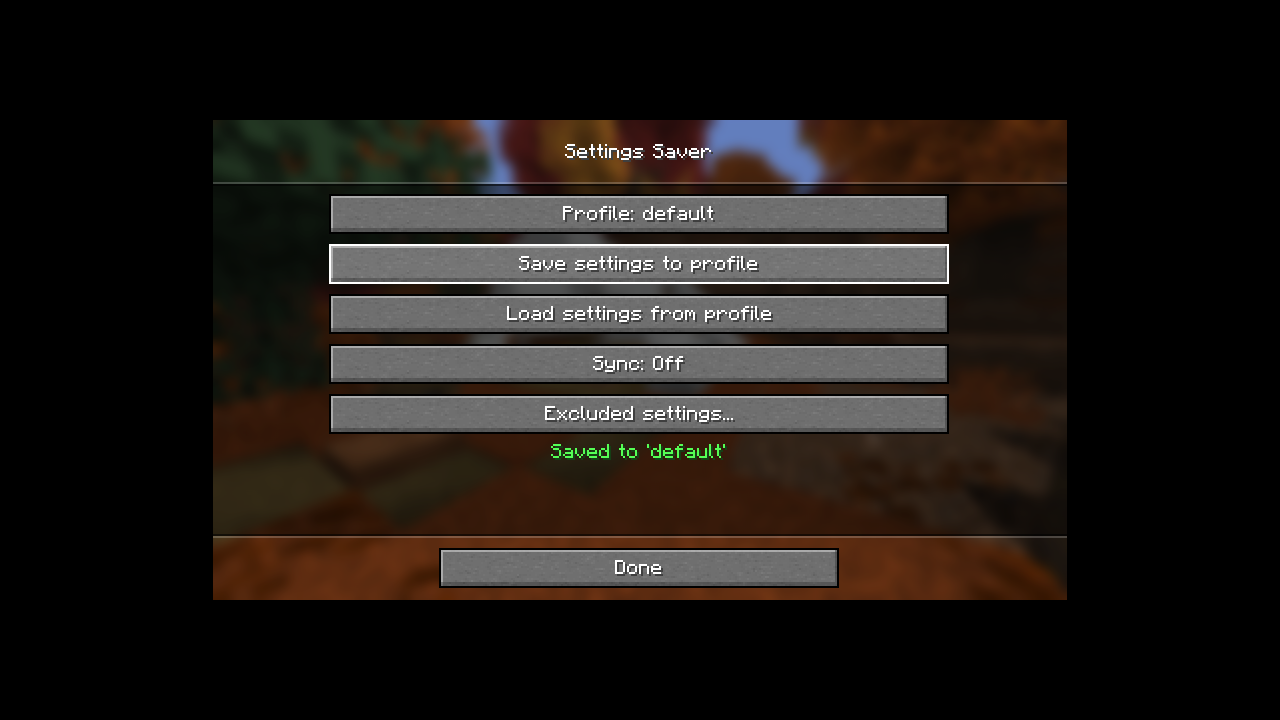
That is all most players need. From now on, every new instance that has Settings Saver starts with
these settings on its first launch, whatever its Minecraft version or loader. Instances that already
have an options.txt are left alone until you press Load.
Load settings into an existing instance#
- In the instance, open Options, then Settings Saver....
- Click Load settings from profile.
- The game asks Replace this game's settings with the ones saved in 'default'? A backup is made first. Click Yes.
- The menu shows Loaded 'default'. Most settings change right away.
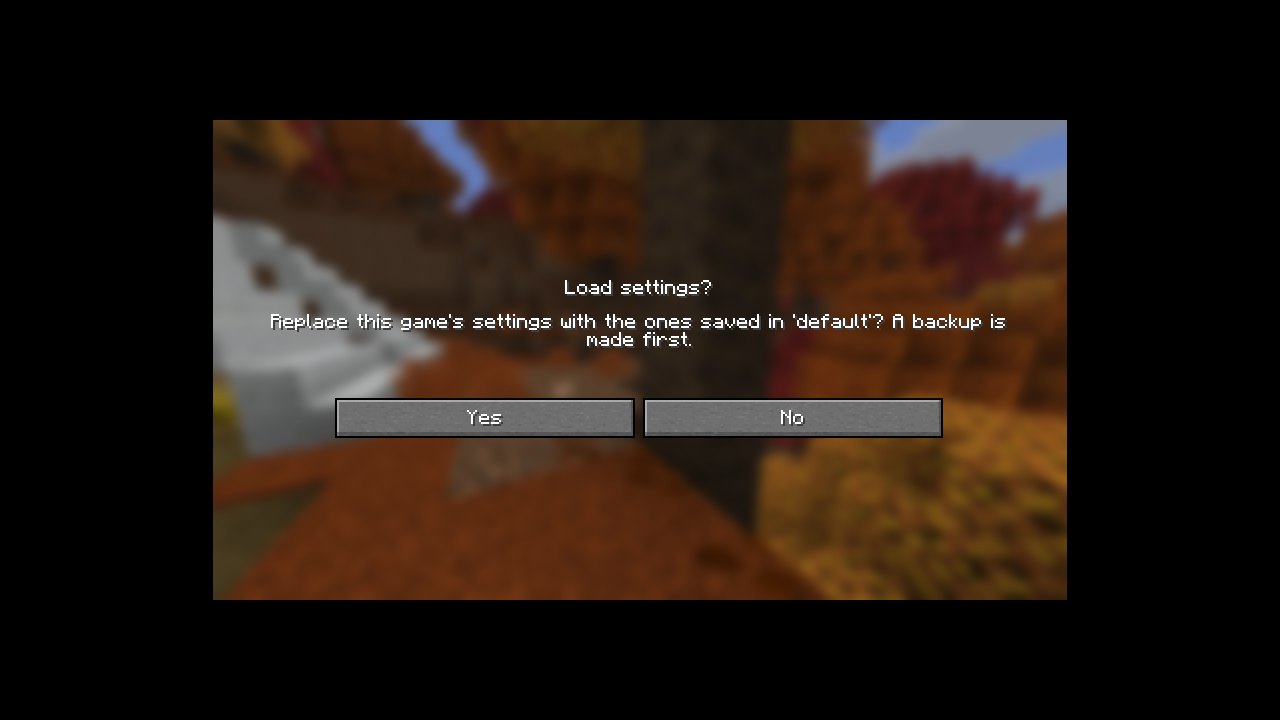
If some settings can't change while the game runs, the message is yellow and names them: Loaded 'default'. Restart the game to apply: …. The new values are already in the file, so restarting the game is enough.
What Save and Load copy#
- Save writes the settings of this instance that differ from the profile. Settings the profile has and this instance doesn't (for example options from a newer Minecraft version) stay in the profile. Save never removes anything from a profile.
- Load writes the profile's settings over the instance's. Settings the profile doesn't have keep the instance's values.
- Both skip the profile's excluded settings, such as resource packs and the last server you joined.
- Both work in every sync mode, and both use the profile shown on the Profile button. To save into or load from another profile, switch to it first.
Settings an older version can only approximate are not overwritten by Save. Say you saved Fabulous graphics in 1.21 and then press Save in 1.12.2, which only has Fast and Fancy: the profile keeps Fabulous. If you pick a different graphics mode in 1.12.2 first, Save stores that choice instead. See Converting between versions.
Status messages#
| Message | Meaning |
|---|---|
| Saved to '…' | The settings were saved. |
| This game has no settings file yet, so there is nothing to save | The instance has no options.txt. Change any option, then Save again. |
| Loaded '…' | The profile was applied. |
| Loaded '…'. Restart the game to apply: … | Applied; the listed settings take effect after a restart. |
| Nothing saved in this profile yet | The profile is empty. Save to it first. |
| This Minecraft version isn't known, so nothing was saved / loaded | Settings Saver couldn't detect the Minecraft version, so it can't convert. See Troubleshooting. |
| Couldn't read or write the settings files: … | A file error, such as a read-only folder or a full disk. |
| Something went wrong (see the log): … | An unexpected error. The game log has the details. |