Using profiles
Keep several sets of settings in Settings Saver profiles and choose one per instance. Covers creating, switching, copying, renaming and deleting.
On this page
A profile is one saved set of settings with its own list of excluded settings. Each instance picks
the profile it uses, so a PvP pack can use a pvp profile with a lower FOV and different keybinds
while every other instance uses default. By the end of this guide you have a second profile and an
instance that uses it.
Before you start#
Settings Saver is installed. Open Options, Settings Saver..., then click Profile: default to open the Profiles screen.
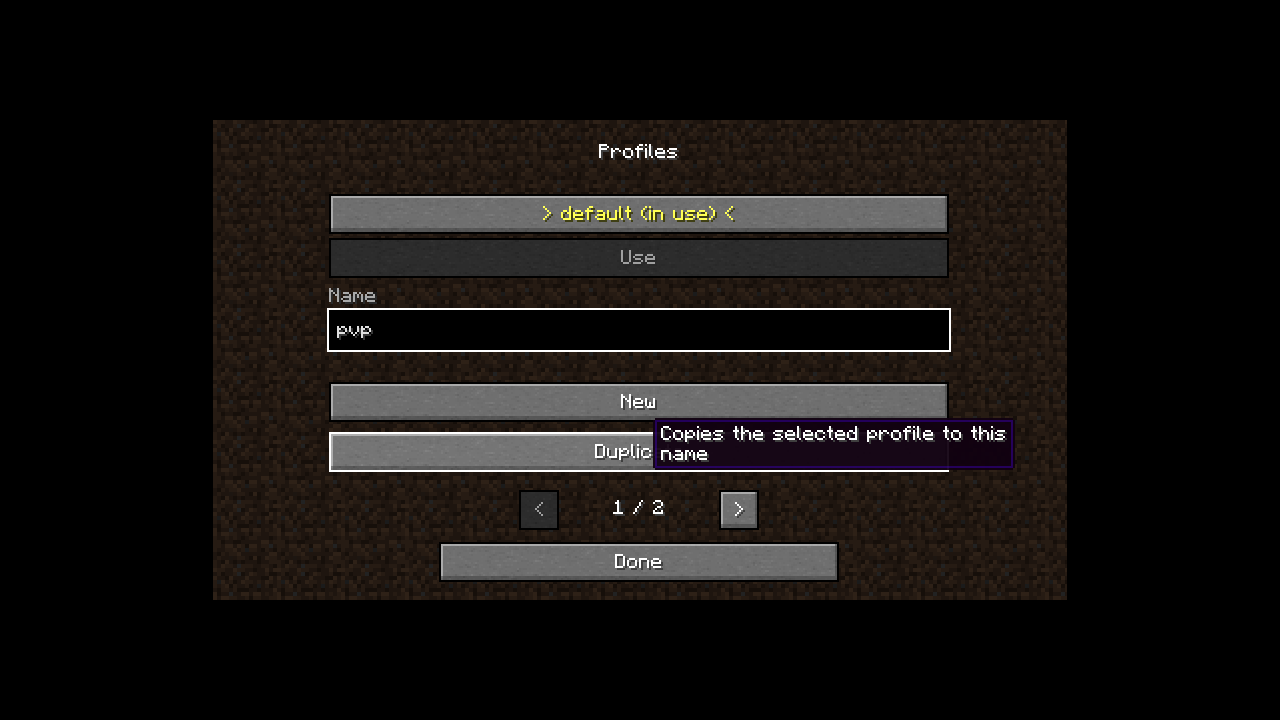
The list shows every profile: default first, the others sorted by name. The one this instance uses
is marked (in use). Click a profile to select it. Buttons that need a selection or a name stay
greyed out until you give them one.
Create a profile and use it#
- Type a name, for example
pvp, in Name. - Click New. The menu shows Created 'pvp' and the profile appears in the list. It starts empty, with the default excluded settings.
- Select
pvpand click Use. The menu shows Now using 'pvp'. - Click Done. The main menu now shows Profile: pvp.
- Set the game up the way you want it for this profile, then click Save settings to profile.
The choice is stored in this instance's config file as profile=pvp. Other
instances keep their own profile.
Copy a profile#
Select the profile to copy, type a new name and click Duplicate. The copy gets the source's saved
settings and its excluded settings. Duplicating default is a quick way to start a variant of your
usual settings.
Rename a profile#
Select it, type the new name and click Rename. You can also change only the capitalization
(pvp to PvP). If this instance uses the profile, it follows the new name.
Other instances that used the old name are not updated. At their next launch they can't find the
profile, log Profile 'pvp' does not exist; using default and use default. Select the renamed
profile in those instances again.
Delete a profile#
Select it and click Delete, then Yes to confirm. The profile's folder and everything saved in
it are deleted, which can't be undone. If this instance used it, it switches to default. Other
instances that used it fall back to default at their next launch, as with a rename.
The default profile#
default always exists. It can't be renamed or deleted (the buttons are greyed out and say why).
To empty it, close every game that uses it and delete the vanilla folder inside
<store>/profiles/default/ (see Where your settings are stored). Its
profile.properties, with the excluded settings, can stay.
New instances use default unless they name another profile. To make a different profile the
starting point for new instances, set defaultProfile in the global config.
Profile names#
- 1 to 32 characters: letters, digits, spaces,
-and_. - No space at the start or end.
defaultis reserved, in any capitalization.- Names are unique regardless of case:
PvPandpvpcan't both exist.
If a name breaks a rule, the menu shows Invalid name: … with the reason and keeps New, Duplicate and Rename greyed out.